The fastest way to blow an admin panel budget is to try to build every screen your team might ever want in version one. The fastest way to waste it is to build so little that staff go straight back to the spreadsheet.
Version one of an admin panel should do one thing well: run your daily operations without workarounds. This guide lists exactly what to include in V1, what to leave for V2, what it typically costs and how to scope it so your team actually uses it from week one.
Start with the daily jobs, not the features
Before listing screens, write down the five to ten jobs your team does every day. For example:
- Add a new order, booking or lead
- Change its status and assign it to someone
- Find a customer and see their history
- Issue a refund or update a payment
- Export this week’s numbers for the owner
Every V1 screen should map to one of those jobs. If a screen does not, it is probably V2.
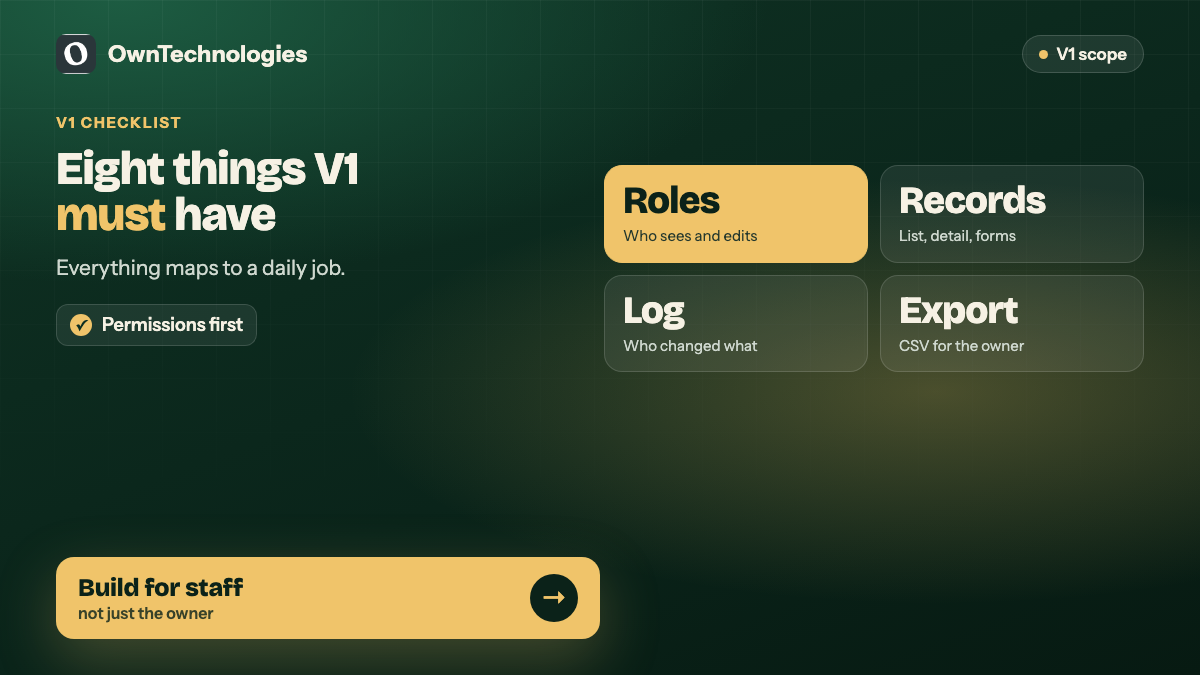
The V1 admin panel checklist
1. Login, roles and permissions
- Secure login with strong passwords and, ideally, two-factor authentication
- At least two or three roles, such as Owner, Manager and Staff
- Rules for who can view, edit, delete and export
Permissions are the main reason businesses leave spreadsheets. Do not push them to V2.
2. The core record screens
For the main thing your business manages (orders, bookings, students, leads, properties or patients):
- A list view with search, filters and sorting
- A detail view showing everything about one record
- Create and edit forms with validation, so bad data cannot get in
- Clear statuses, such as New, In progress, Done and Cancelled
3. Users and customers
- A customer list with contact details and history
- Notes and tags
- The ability to merge duplicates, if you import old data
4. A simple dashboard
Four to six numbers the owner checks every morning: today’s orders or bookings, revenue, pending items and overdue tasks. Resist the urge to build twenty charts in V1.
5. Activity log
Who changed what and when. It settles disputes, catches mistakes and is often a compliance need.
6. Notifications
Email or WhatsApp alerts for the two or three events that need action, such as a new order, a failed payment or an overdue task.
7. Import and export
- A one-time import of your existing spreadsheet data
- CSV or Excel export of any list, so the accountant and owner are not blocked
8. Basic settings
Business details, tax rates, opening hours, email templates and the lists your team edits, such as service types or locations.
What to leave for version two
| Feature | Why it can wait |
|---|---|
| Advanced reports and custom charts | Exports cover reporting until you know which reports matter |
| Automation rules and workflows | Learn the real process first, then automate it |
| Full mobile app for staff | A responsive web panel works on phones for most teams |
| Deep integrations beyond one or two | Start with the integration that removes the most manual work |
| Customer self-service portal | Build once the internal process is stable |
| AI features | Add them when you have clean data to work with |
V2 should be driven by what your team asks for after a month of real use, not by guesses made before launch.
What a V1 admin panel costs and how long it takes
With an experienced offshore team, a focused V1 admin panel usually takes **four to eight weeks** and costs roughly **$4,000 to $15,000** depending on the number of record types, roles and integrations. Our guide to replacing spreadsheets with a custom admin panel covers cost and migration in more detail, and our custom CRM development cost guide helps if your panel is really a CRM.
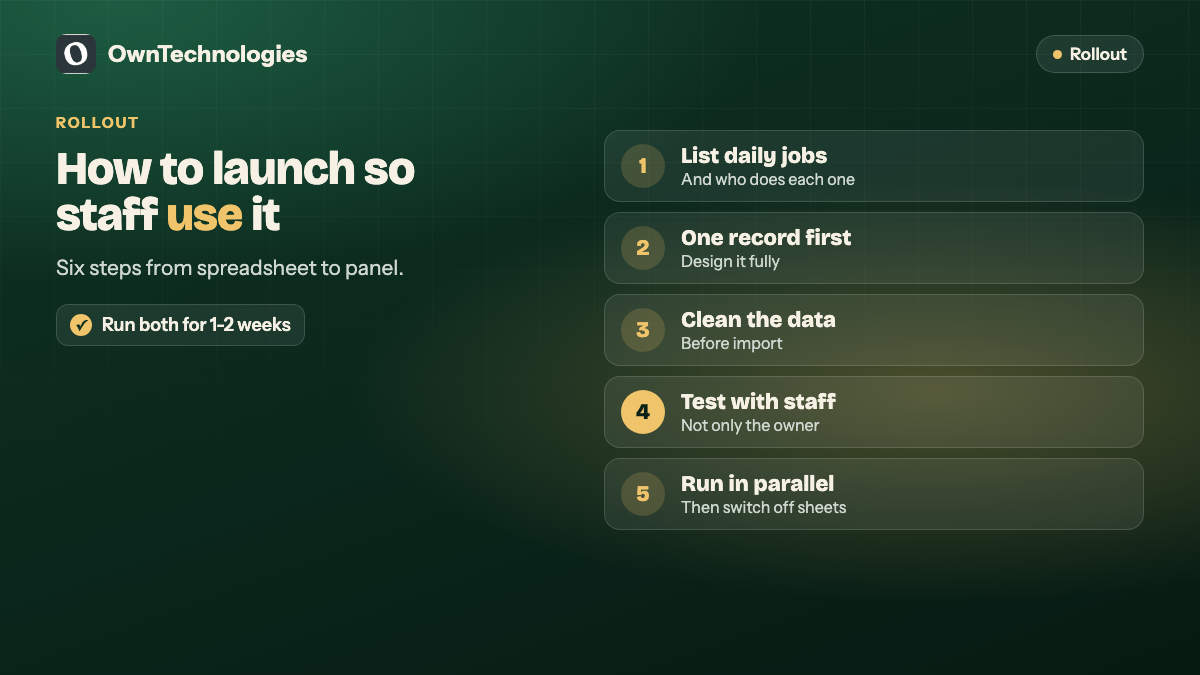
How to scope V1 so it gets used
- **List the daily jobs** and the person who does each one.
- **Pick the one record type** that matters most and design it fully first.
- **Agree roles and permissions** before design starts.
- **Clean your data** before import. Old duplicates become new problems.
- **Test with the staff who will use it**, not just the owner.
- **Run the old and new systems in parallel for one or two weeks**, then switch off the spreadsheet.
V1 examples by business type
| Business | Core record | Must-have V1 screens |
|---|---|---|
| Training institute | Students and courses | Enrolments, batches, fee status, attendance export |
| Clinic or salon | Bookings | Calendar, client history, staff schedule, reminders |
| Delivery or logistics | Orders | Order list, assignment to drivers, status tracking, COD reconciliation |
| Real estate agency | Leads and listings | Lead assignment, follow-up dates, listing status |
| E-commerce brand | Orders and products | Order processing, refunds, stock levels, customer lookup |
In each case V1 covers the record your team touches all day. Reports, automation and portals come later.
Questions to ask your developer before V1 starts
- How will roles and permissions work, and can we change them later without code?
- How will our existing spreadsheet data be imported and checked?
- Can every list be exported to Excel or CSV?
- Where is the data hosted, and who owns the code and the database?
- What does support cost after launch, and how fast are fixes?
- How easy is it to add a new field or status in V2?
Clear answers to these six questions tell you more about the project than any feature list.
Common V1 mistakes
- **Building for the owner, not the staff.** Owners want dashboards; staff need fast forms and search.
- **No permissions.** Everyone sees everything, which recreates the spreadsheet problem.
- **No import plan.** The panel launches empty and nobody wants to retype data.
- **Too many statuses.** Five clear statuses beat fifteen confusing ones.
- **Skipping the activity log.** The first dispute will make you wish you had it.
Where OwnTechnologies fits
We build admin panels and CRMs for businesses moving off spreadsheets, along with the websites and apps they power. Projects start with the daily jobs list, design comes before code, and you approve each milestone. Past work includes admin dashboards for BVT Training and the Solaris Robots operator portal. See our portfolio.
Frequently Asked Questions
Login with roles and permissions, list and detail screens for your main records, customer records, a simple dashboard, an activity log, key notifications, import and export, and basic settings.
A focused version one usually takes four to eight weeks, depending on the number of record types, roles and integrations.
With an experienced offshore team, a V1 admin panel typically costs about $4,000 to $15,000. Larger panels with many integrations cost more.
Usually not in version one. A responsive web panel works on phones for most teams. Build a staff app later if field teams need offline access or device features.
Advanced reports, automation rules, a staff mobile app, extra integrations, customer portals and AI features. Let real usage decide the order.
Clean the data first, then run a one-time import. Run the old and new systems side by side for a week or two before switching off the spreadsheet.
Final Thoughts
A good V1 admin panel is small, secure and used every day. Build around the daily jobs, get permissions and the core record screens right, include import and export, and let a month of real use decide what goes into version two.
Planning an admin panel? Our CRM and admin panel team will map your daily jobs and scope a V1 your staff will actually use, and our app team can add a staff app when you need one. Book a free consultation to get started.